Interactive session
How to work inside a Dropstone session. File references, shell escapes, slash commands, and editor integration.
Dropstone runs as an interactive session in your terminal. Each session is tied to the directory you launched it from, holds the conversation history, and stays open until you exit. This page covers how to drive a session: how to reference files, run shell commands, use slash commands, and connect an external editor.
Start a session
Run dropstone from inside a project:
dropstone
Or point it at a specific directory:
dropstone /path/to/project
Once Dropstone is up, type any natural-language prompt:
Give me a quick summary of the codebase.
Change the workspace
Started in the wrong place? You do not have to quit and cd. Press ctrl+o on the home screen — the same shortcut as Open Folder in VS Code — or click Open folder under the path in the welcome panel.
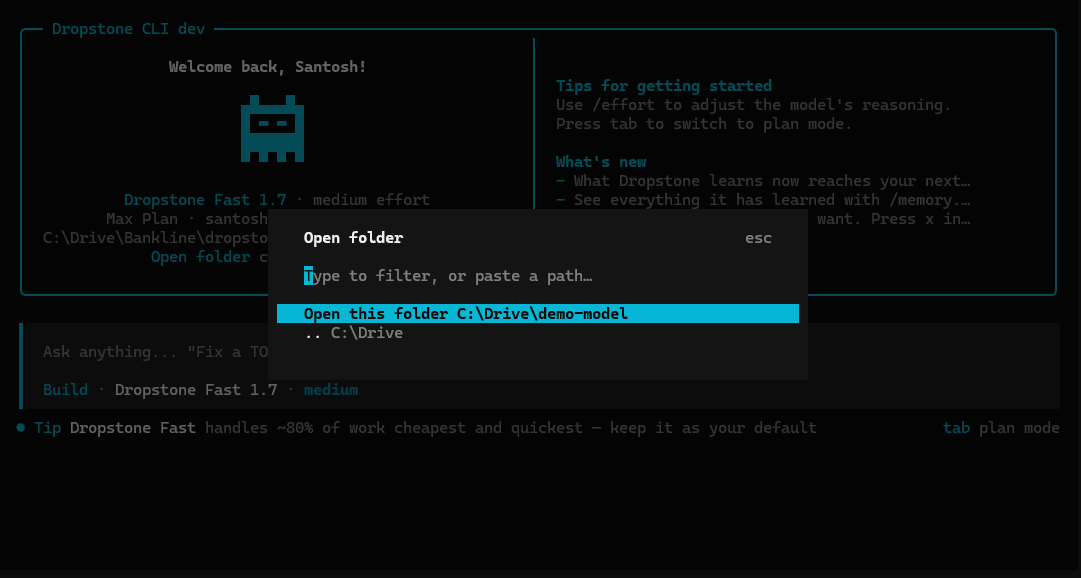
The picker opens on your current directory:
- Open this folder uses the directory you are standing in.
- Choosing any listed subfolder moves into it, so you can walk down a tree.
- .. goes up a level.
- Type to filter the list, or paste an absolute path — or one starting with
~— to jump straight there.
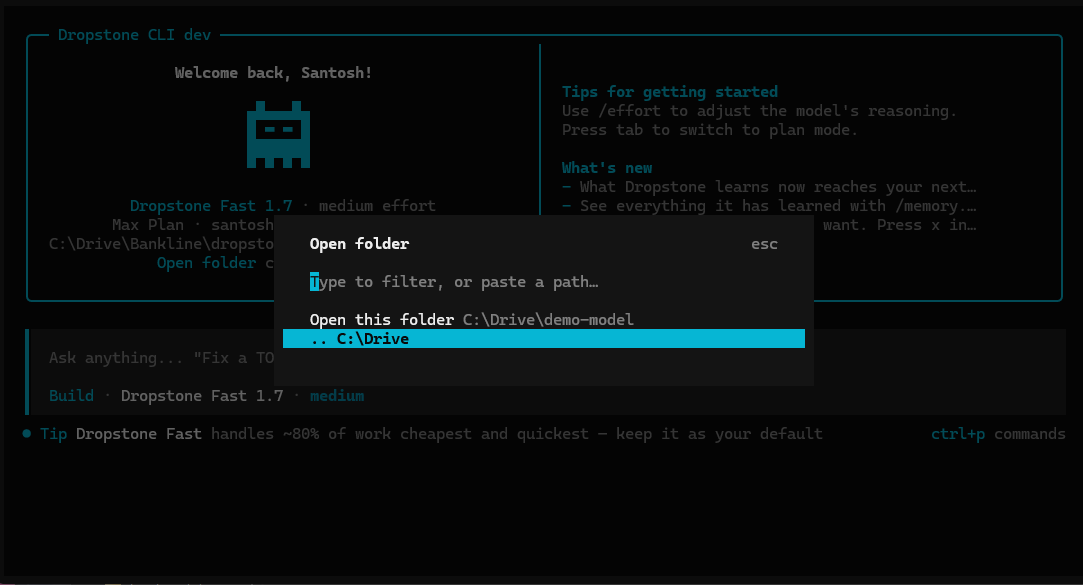
Hidden directories are left out, so .git and .config do not bury what you are looking for. You can still reach one by pasting its path.
Note
Choosing a folder restarts Dropstone there. A session's working directory is fixed when it starts — the agent, the file index and the session history are all keyed to it — so changing folders means a fresh start rather than a live swap. The current conversation ends and Dropstone reopens on the home screen in the new folder.
The shortcut is the workspace.open command and can be rebound. It is also in the command palette (ctrl+p) as Open folder, which is the way in if your terminal intercepts ctrl+o.
File references
Reference files in your messages with @. This does a fuzzy search across the current working directory.
How is auth handled in @src/api/index.ts?
The file's contents are added to the conversation automatically, so the agent can read it without grepping for it first.
Shell commands
Start a message with ! to run a shell command. The output is added to the conversation as a tool result so the agent can react to it.
!ls -la
!git diff
Slash commands
Type / followed by a command name to perform a quick action. Most have a keyboard shortcut using ctrl+x as the leader key (configurable via Keybindings).
/help
compact
Compact the current session. Older context is summarized so newer work has room. Alias: /summarize.
Keybind: ctrl+x c
details
Toggle whether tool execution details are shown inline.
editor
Open your external editor to compose a longer message. Uses the editor set in EDITOR. See Editor setup.
Keybind: ctrl+x e
effort
Adjust the active model's reasoning depth. Opens a picker with four levels: low, medium, high, xhigh. Higher effort yields deeper reasoning at the cost of more credits and slightly higher latency. Alias: /thinking.
exit
Exit Dropstone. Aliases: /quit, /q.
Keybind: ctrl+x q
export
Export the current conversation to Markdown and open it in your editor (uses EDITOR).
Keybind: ctrl+x x
help
Show the help dialog with every slash command and keybind.
init
Guided setup for creating or updating AGENTS.md. See Rules (AGENTS.md).
models
List the available models for this session.
Keybind: ctrl+x m
new
Start a new session in the current directory. Alias: /clear.
Keybind: ctrl+x n
redo
Redo a previously undone message. Only available after /undo. File changes are restored as part of the redo.
Requires Git
Undo and redo use Git to manage file-state snapshots, so your project must be a Git repository.
Keybind: ctrl+x r
sessions
List and switch between sessions. Aliases: /resume, /continue.
Keybind: ctrl+x l
undo
Undo the last message in the conversation. Removes the most recent user message, all subsequent responses, and any file changes made in those turns.
Requires Git
Undo uses Git to revert file changes, so your project must be a Git repository.
Keybind: ctrl+x u
upgrade
Open the Dropstone pricing page to upgrade your plan. Use this when you need more weekly credits or access to premium tiers (Dropstone Pro, Dropstone Heavy).
Plan upgrade vs CLI upgrade
/upgrade is the plan upgrade. To update the Dropstone CLI binary itself, run dropstone update from your shell.
usage
Show the current week's credit consumption, plan name, weekly limit, and when credits next reset.
Editor setup
The /editor and /export commands launch the editor in your EDITOR environment variable.
# Terminal editors
export EDITOR=nano
export EDITOR=vim

# GUI editors (VS Code, Cursor, VSCodium, Windsurf, Zed, etc.)
# require --wait so the editor process blocks until closed
export EDITOR="code --wait"
To make this permanent, add it to your shell profile (~/.bashrc, ~/.zshrc, and so on).
Popular options:
codefor Visual Studio Codecursorfor Cursorwindsurffor Windsurfnvimfor Neovimvimfor Vimnanofor Nanosublfor Sublime Textnotepadfor Windows Notepad
The --wait flag
GUI editors like VS Code return immediately by default, which would skip your message. The --wait flag makes the editor process block until you close the file, so Dropstone can read what you wrote.
Customisation
A handful of session-level preferences live in the command palette (Ctrl+P). Search for what you want to change; the setting is remembered across sessions.
- Hide username: drops your username from chat messages
- Diff style: choose between adaptive (default) and single-column stacked diffs
- Mouse capture: toggle whether the terminal handles mouse selection itself, or Dropstone does
For everything else (keybinds, formatters, config file format), see the dedicated pages: Keybindings, Formatters, Configuration.
Privacy and data retention
Your prompts, code, and conversation transcripts are never used to train models and are not retained beyond the lifetime of your session. Dropstone uses session-scoped prompt caching to reduce cost and latency, the same way Anthropic and OpenAI do: cached content is isolated to your own account, expires automatically, and is never reused for any other user or sent to model training.
These controls are enforced and reviewed by Blankline, Dropstone's parent company. Blankline's compliance team audits Dropstone's data handling on a recurring basis and retains revocation authority over the production access of any individual or system that breaches the policy.
See the Trust page for the full posture, including subprocessor disclosures and the runtime security boundary.